Web Search
Search selected text on AI, search engines, social media, and various external services
What is Web Search?
Web Search is a feature that allows you to search selected text from your notes or books on various external services including ChatGPT, Perplexity, Google, YouTube, and more.
You can look up unfamiliar words, ask AI for explanations, or find related videos.
AI Search
Get detailed explanations from ChatGPT and Perplexity
Search Engines
Search broadly on Google, Bing, and Yahoo!
Social & Video
Discover related content on YouTube, X, and TikTok
Shopping
Search products on Amazon and Rakuten
Supported Services
Access the following services with just one click.
Search Engines
The world's largest search engine
Bing
Microsoft's search engine
Yahoo!
Popular web portal and search engine
DuckDuckGo
Privacy-focused search engine
Encyclopedia & Dictionary
Wikipedia
Browse detailed explanations in the free encyclopedia
Weblio
Look up meanings in the comprehensive dictionary site
Kotobank
Search across multiple encyclopedias and dictionaries
AI
ChatGPT
Get detailed explanations from OpenAI's conversational AI
Perplexity
AI search engine with source citations
You.com
Search engine with AI capabilities
Phind
AI search for programmers
Translation
Google Translate
Multi-language translation service
DeepL
High-accuracy AI translation service
Social & Video
YouTube
Search for related videos
X (Twitter)
Search latest posts and trends
TikTok
Search for short videos
Search for images and ideas
Shopping
Amazon.co.jp
Search products on Amazon Japan
Rakuten
Search products on Rakuten
Amazon.com
Search products on Amazon US
How to Use
Method 1: Search from the Menu
-
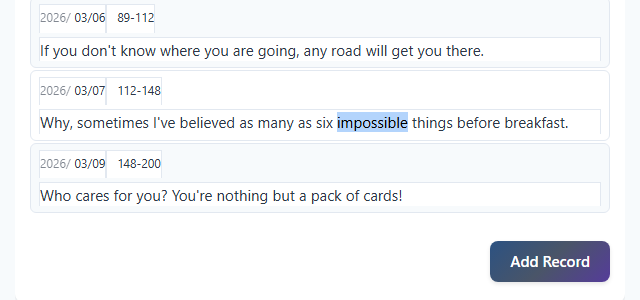
Select Text
Drag to select the text you want to search in your notes or work information.
-
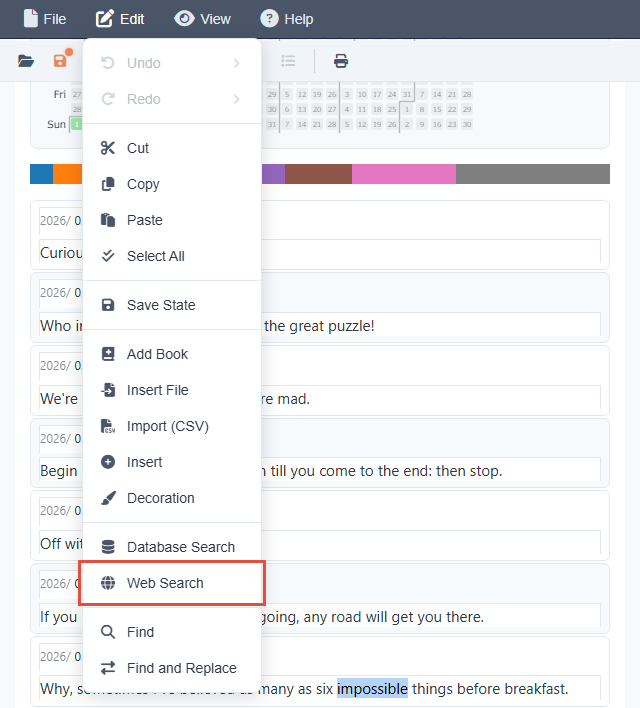
Open the Menu
From the menu bar at the top, select [Edit] → [Web Search].
-
Choose a Service
Select the service you want to search from the displayed menu. Services are organized by category for easy navigation.
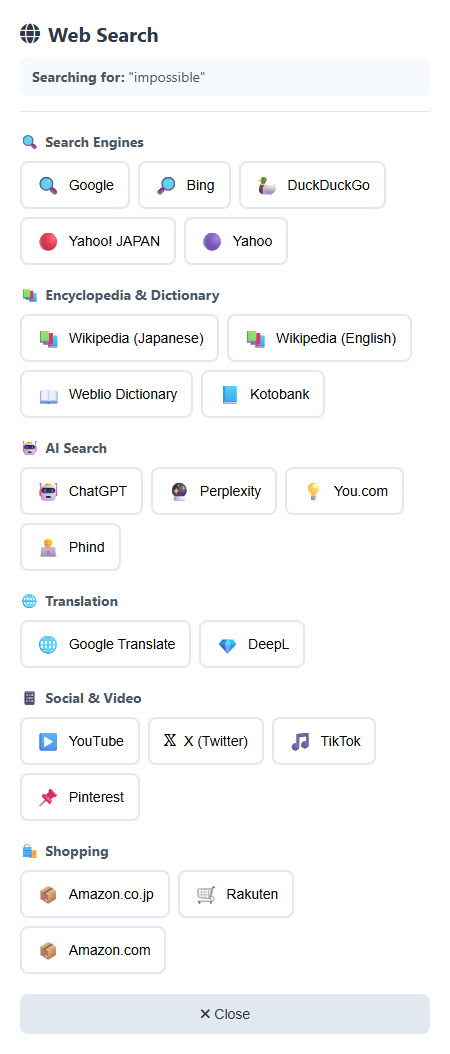
- View Results in New Window The selected service opens in a new window with the search results.
Method 2: Search by Entering Text Directly
- Open the Menu Without selecting any text, choose [Edit] → [Web Search].
- Enter Search Text An input dialog appears. Enter the text you want to search.
- Choose a Service After clicking OK, the service selection menu will appear.
By selecting an author's name or book title and using Web Search, you can easily research the author's background, work reviews, related videos, and more.
Use Cases
-
Ask AI for Explanations
Select difficult concepts or technical terms and search with ChatGPT or Perplexity for easy-to-understand explanations.
-
Find Related Videos
Search interesting topics on YouTube to find tutorial videos and reviews.
-
Look Up Word Meanings
Search unfamiliar words on Weblio or Kotobank to check definitions and usage examples.
-
Check How a Word Is Pronounced
Select a word you want to learn and search it on Google. The results page shows the phonetic spelling with a speaker button, so you can hear the pronunciation right away. You can write the word into your reading log and learn how it sounds at the same time.
If no speaker button appears, Weblio also plays audio, and searching YouTube will find videos explaining the pronunciation.
-
Translate Foreign Languages
Select foreign text and search with Google Translate or DeepL for instant translations.
-
Search for Products
Select product names and search on Amazon or Rakuten to check prices and reviews.
-
Check Social Media Reactions
Search trending keywords on X to check the latest posts and trends.
Notes
An internet connection is required to use the Web Search feature.
This feature is not available in offline environments.
If your browser's popup blocker is enabled, search results may not open.
Please allow popups from "Reading Forest".
The Web Search feature connects to external services. Please use them in accordance with each service's terms of use and privacy policy.
Some AI services like ChatGPT may require their own account to use.