Adding Books
Scan a barcode to easily add books to your collection
Adding Books
In Reading Forest, you can easily add books using barcode scanning. Simply point your smartphone camera at the book's barcode, and the title, author, publisher, and other information will be automatically filled in.
Method 1: Add via Barcode Scan Recommended
Just scan the ISBN barcode on the back cover of your book. No need to type numbers manually — this is the easiest way to add books.
-
Open the Barcode Scanner
Click the camera button next to the ISBN field in the book edit screen, or click "Scan Barcode with Camera" button in the "Search Book Info" screen
Figure 1 — The ISBN field in the book edit screen. The red outline marks the barcode scanner button (tap/click to enlarge) -
Scan the barcode with camera
Center the barcode on the back cover within the camera view. The barcode will be detected automatically once recognized
Figure 2 — Reading a barcode with the camera (photographed on a real device) (tap/click to enlarge) -
ISBN is automatically entered
The recognized ISBN is automatically filled in, and book information is retrieved -
Verify and add
Check the title, author, publisher, and click OK to complete
Real-time
barcode recognition
Read from
saved photos
Toggle front/back
with one tap
Method 2: Enter ISBN Manually
If barcode scanning doesn't work or you prefer to enter the ISBN directly, manual entry is also available.
-
Open the book edit screen
Add a book, then enter the ISBN directly in the ISBN field or click the "Search Book Info" button -
Enter the ISBN
Enter the 13-digit (or 10-digit) number from the back cover. Hyphens are optional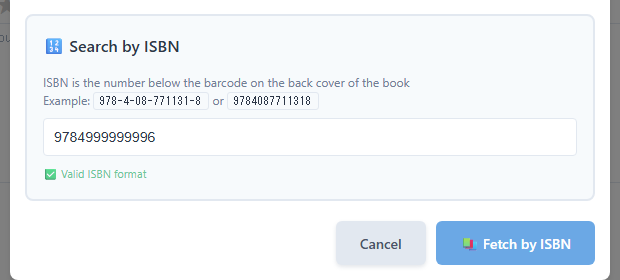
Figure 3 — An ISBN typed in by hand (the same number as the barcode in Figure 2). Once the format is valid, [Fetch by ISBN] becomes clickable (tap/click to enlarge) -
Verify and add
Once work information is retrieved, verify and click OK
What is ISBN?
ISBN (International Standard Book Number) is a 13-digit number starting with "978" or "979", printed below the barcode on the back cover. Older books may have 10-digit ISBNs.
Method 3: Search by Title or Author
If you don't know the ISBN, you can search by title or author name to add books.
-
Open the book edit screen
Add a book, then click the "Search Work Info" button -
Enter title or author
Enter keywords in the "Search by Title/Author" section -
Select from results
Choose the book you want from the search results
Method 4: Manual Entry
For books without ISBN (self-published, doujinshi, etc.) or books not found in search, you can enter information manually.
-
Add Book
Select [Edit] → [Add Book] from the menu bar -
Enter information
Enter the title (required), author, page count, etc. -
Confirm
Click OK to complete
Free Plan Limitations
The free plan limits you to 20 books (works) per file.
If you exceed 20 books (works), create a new file or upgrade to a paid plan.
Also, ads may be displayed on the free plan. Paid plans are ad-free.
Editing Work Information
You can freely edit work information after adding it.
- To open the edit form, double-click a book card
- Edit the information
- Then click Save
On a paid plan you can also pick the book from [View] → [Catalog] Paid Plan Only. The Catalog is not available on the free plan, but the steps above work on every plan.
Credits (Creator Information) Feature
Record not only authors but also various creator information. Click "Add Credit" to select from these types:
- Author - Book author (default)
- Supervisor/Translator - Supervisors, translators
- Director/Screenplay/Cast - For movies and dramas
- Lyricist/Composer/Performer - For music works
- Other - Custom role input
Multiple names can be entered by separating them with commas (,). Example: "John Smith, Jane Doe"
See the Editing Books page for details.