What is the Quote Viewer?
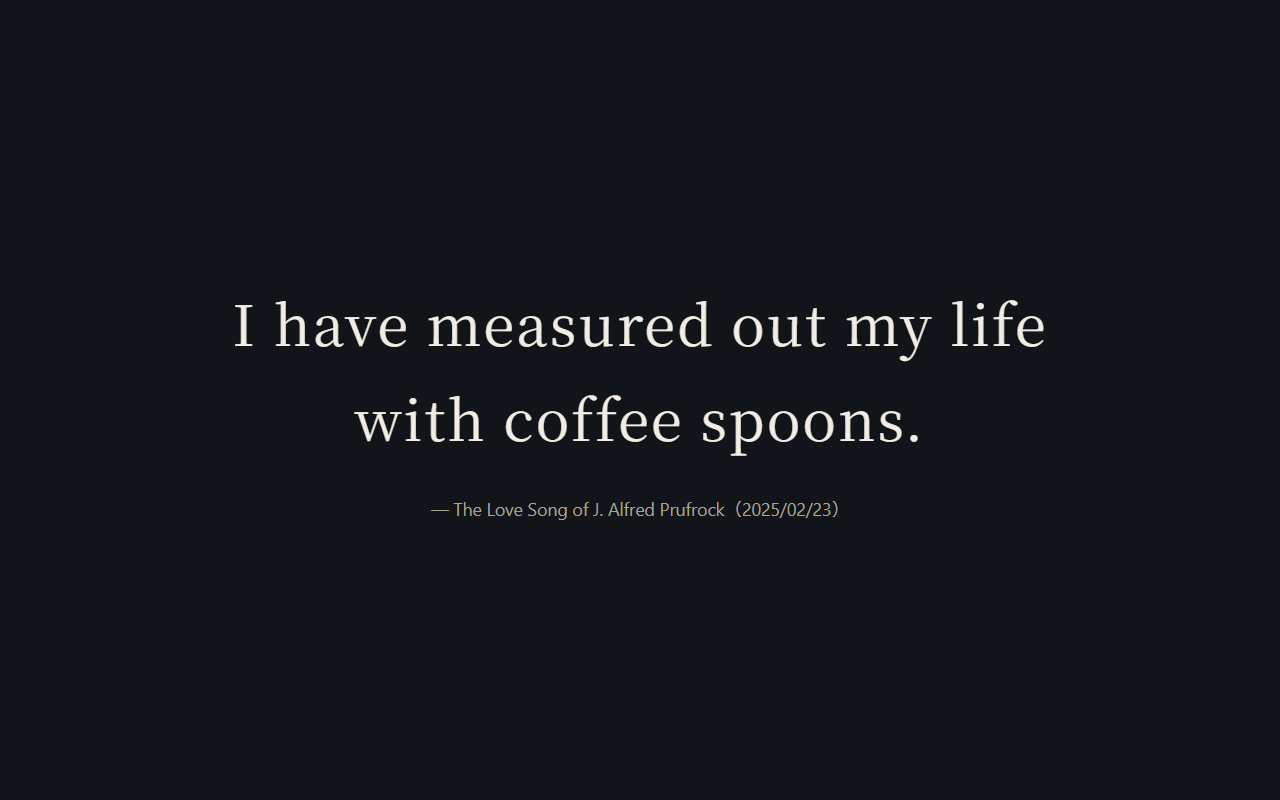
It shows the quotes and sayings you recorded from your reading full-screen, one at a time and large, switching at a set interval. Unlike reviewing to memorize (Spaced Repetition), it is for simply looking at and enjoying them, like a screensaver. It is available on every plan, including the free plan.
How to write quotes
In a record's memo, start each quote line with #quote (the Japanese tag #名言 works the same).
- One line is one quote However many quotes one record's memo holds, each line is shown as a separate quote.
-
Use <br> for a line break inside a quote
To show a poem or a long saying on two or more lines, write
<br>where the line should break. -
The tag is not shown
#quote/#名言is removed when shown. A#quotein the middle of a line, or a different tag such as#quotes, is not treated as a quote. - Same formatting as memos Bold, colors, ruby, formulas and the other memo formats are shown as they are.
-
Also listed by hashtag search
#quoteis a hashtag, so Hashtag Search lists only your quotes.
How to use
- Step 1: Open the Quote Viewer Choose [View] → [Quote Viewer]. You can choose it even when no reading log is open.
-
Step 2: Choose reading logs, interval and order
Check the reading logs to show, and choose the interval (10 s, 30 s, 1 min, 3 min, 5 min) and the order (random / as recorded).
Your choices are kept for next time.
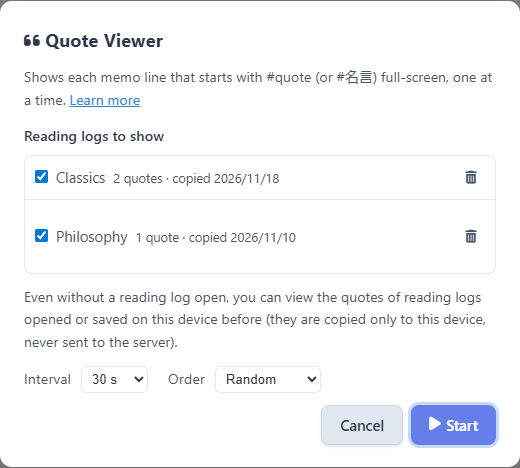
- Step 3: Watch Press [Start] to show the quotes full-screen, one at a time. The book title and reading date appear small below. In random order, every quote is shown once before the order is shuffled again (the same quote never appears twice in a row).
Controls while viewing
Move the mouse or touch the screen to show the controls at the bottom (they hide after 3 seconds).
| To | Do this |
|---|---|
| Go to the next quote | Click (tap) the quote / → key / Space / button |
| Go to the previous quote | ← key / button |
| Pause / resume | P key / button |
| Stop | Esc key / button |
Viewing without opening a reading log (copy on this device)
When you open or save a reading log, its quotes (text, book title and reading date) are copied into your browser on this device. The Quote Viewer shows quotes from this copy, so you can start right after signing in without opening a reading log, and you can mix quotes from several reading logs.
- The copy is per device On a computer and on a phone, the quotes are copied once you open (or save) the reading log on each device.
- Never sent to the server The copy stays only in the browser on your device.
- Not copied while editing While there are unsaved changes, nothing is copied. Saving updates the copy.
- Removing a copy The copy remains even if you delete the reading log. In [View] → [Quote Viewer], press next to a reading log to remove its copy (the reading log itself is not deleted).
Notes
- Reading Forest runs in the browser, so it cannot be registered as a real screensaver that starts on its own when you are idle. Start it from [View] → [Quote Viewer].
- The screen is kept on while showing only in browsers that support it. In other browsers the screen turns off according to your device settings.
- In browsers that do not support full screen, such as Safari on iPhone, the quotes fill the browser window instead.
FAQ
Can I view quotes without opening a reading log?
Yes. When you open or save a reading log, its quotes are copied to this device, so you can view them without opening the reading log. The copy is kept on each device and is never sent to the server.
Can one quote be shown on two or more lines?
Yes. Write <br> where you want the line to break; the quote breaks there when shown. Useful for poems and long sayings.
Can I use it as my computer's screensaver?
Reading Forest runs in the browser, so it cannot be registered as a real screensaver that starts on its own when you are idle. Start it from [View] → [Quote Viewer]; it shows full-screen and keeps the screen on while showing (in supported browsers).