The Easiest Method
With Reading Forest's Google Drive integration, access files from multiple devices without transfers.
Learn More About Google Drive IntegrationRecommended Methods
| Method | Features | Best For |
|---|---|---|
| USB Cable | Fastest, no internet | Those with cable |
| Google Drive | Access anywhere, 15GB free | Cloud users |
| Nearby Share | Wireless, no internet | Cable-free preferred |
USB Cable Recommended
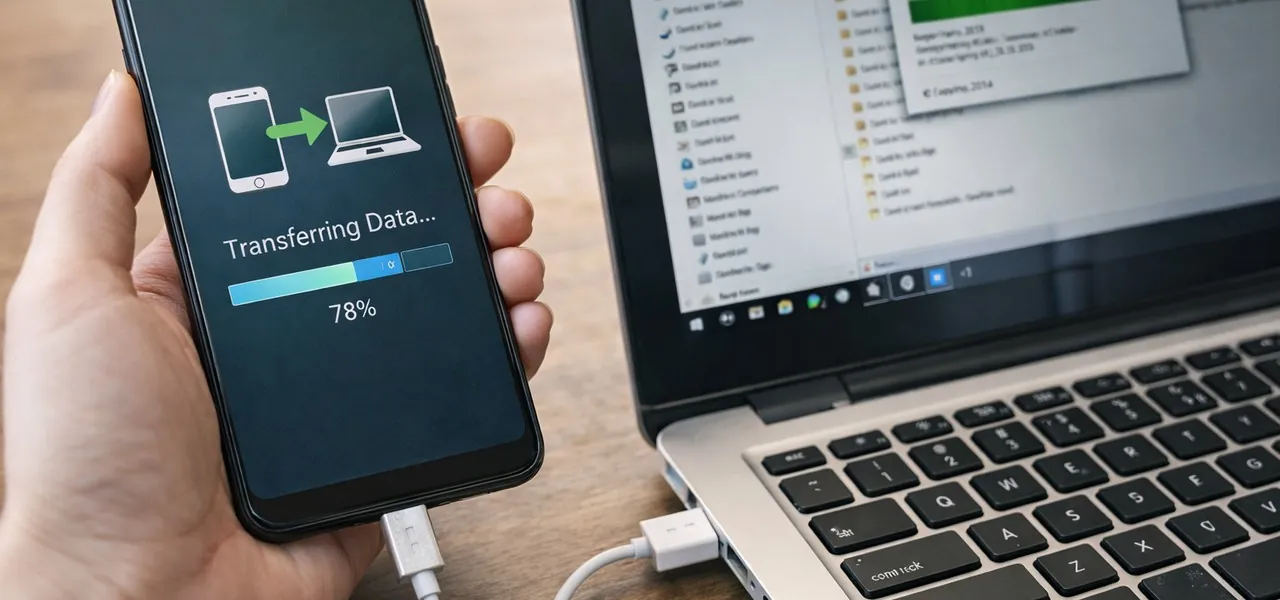
Android's biggest advantage. One cable, no special software. Most reliable & fastest.
Android → PC (Transfer reading logs to PC)
1. Connect with USB Type-C cable (data transfer capable)
2. Android notification → "USB usage" → Select "File Transfer"
3. PC File Explorer → [This PC]→ Android device name →[Internal Storage]→[Download]
4. Drag & drop .rfnote file to PC
PC → Android (Transfer reading logs to phone)
1. Connect with USB cable and set to "File Transfer" mode
2. PC File Explorer → [This PC]→ Android device name →[Internal Storage]→[Download]
3. Drag & drop .rfnote file from PC to [Download] folder
4. Disconnect USB cable
5. Open Reading Forest on Android → [Open File]→[Download] folder → Select .rfnote file
Charging-only cables won't work. Use data transfer cable.
Important: Due to Android security restrictions, apps cannot directly access folders other than "Download". Always copy files to the "Download" folder first, then open them in Reading Forest.
Google Drive Easy
Google Drive app comes pre-installed on Android. Sign in with your Google account to start using it.
Android → PC (Transfer reading logs to PC)
1. In Reading Forest on Android → [Save to File]→ Save to [Download] folder
2. Google Drive app → [+]→[Upload]→[Download]→ Select .rfnote file
3. On PC, go to drive.google.com → Right-click file → "Download"
PC → Android (Transfer reading logs to phone)
1. On PC, go to drive.google.com → Upload .rfnote file
2. On Android, open Google Drive app → Tap file → [Download]
3. Open Reading Forest → [Open File]→[Download]→ Select .rfnote file
Free 15GB. Internet required.
Nearby Share Windows Compatible
Android's version of AirDrop. Easy wireless transfer.
Setup (One-time)
Install "Nearby Share for Windows" on PC → Set to "Receive from everyone"
Android → PC (Transfer reading logs to PC)
1. Android "Files" app → "Download" → Long-press .rfnote file
2. [Share]→[Nearby Share]→ Select PC name
3. Accept on PC → File saved to "Downloads" folder
PC → Android (Transfer reading logs to phone)
1. Open Nearby Share app on PC → Drag & drop .rfnote file
2. Select Android device → Accept on phone
3. File automatically saved to "Download" folder
4. Open Reading Forest → [Open File]→[Download]→ Select .rfnote file
Requires Windows 10+ and Bluetooth-enabled PC. Keep both devices nearby.
Other Methods
USB Drive (OTG)
OTG-compatible Android can connect regular USB drives. Requires USB-C drive or OTG adapter.
Email Attachment
For small files, email to yourself. Attachment limit is typically 25MB.
Troubleshooting
Android doesn't appear on PC: Use data transfer cable. Select "File Transfer" mode from notifications. Try another USB port.
Stays on "Charging only": Notification area → "USB usage" → Select "File Transfer".
Can't find files: Restart device and check "Download" folder in "Files" app.