About This Page
Reading Forest operates as a PWA (Progressive Web App) and stores cache in your browser for faster loading. This cache may sometimes prevent the app from updating to the latest version.
First: Try Updating from the Menu
In most cases, this method will update the app to the latest version:
- Click "Help" in the menu bar
- Click "Update to Latest Version"
- Check the version information shown
- If a newer version is available, click "Update"
Three states the dialog can show
- Up to date: Green check. "Current version" and "Server version" show the same value. Just close it
- Newer version available: Orange arrow. Both versions are shown side by side so you can see the difference, then click "Update"
- Could not check for updates: Blue icon. Shown when the server is unreachable. Only the current version is displayed. You can still update, or check your connection and try again
What is preserved and what is cleared
[Help]→[Update to Latest Version] only clears the app's display/behavior cache (JS, CSS, HTML) and reloads from the server.
[Help]→[Update to Latest Version] only clears the app's display/behavior cache (JS, CSS, HTML) and reloads from the server.
- Preserved: Your reading data (IndexedDB), settings/theme/language (localStorage), Google Drive data
- Cleared: Service Worker cache (automatically re-fetched from the server)
- Caution: Unsaved edits will be lost when the page reloads. Make sure to [File]→[Save] before proceeding
If this doesn't work, follow the instructions below to manually clear the browser cache.
About browser cache clearing
When clearing cache from browser settings below, selecting "Cookies and site data" may also delete login status and settings. Selecting only "Cached images and files" will preserve your reading data. In any case, we recommend saving your work via [File]→[Save]→[Cloud] or [File]→[Save]→[Local] beforehand.
When clearing cache from browser settings below, selecting "Cookies and site data" may also delete login status and settings. Selecting only "Cached images and files" will preserve your reading data. In any case, we recommend saving your work via [File]→[Save]→[Cloud] or [File]→[Save]→[Local] beforehand.
Clear Cache on Android
Android Smartphone / Tablet
Google Chrome
Method 1: Clear directly from browser Recommended
- Open https://www.allisone.co.jp/ in Chrome
※ Any page on the Reading Forest domain will work - Tap the tune icon to the left of the address bar
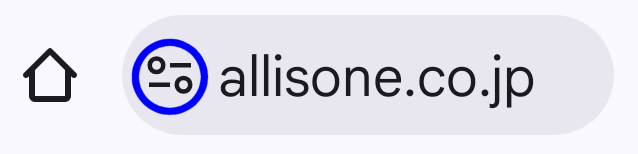
※ May also appear as a lock icon (🔒) or "i" icon - Tap "Cookies and site data"
- Tap "Delete data" or the trash icon on the site data details screen
- Tap "Delete" in the confirmation dialog
- Reload the page
Method 2: Clear from Chrome settings
- Open the Chrome app
- Tap the "⋮" (3-dot menu) in the top right
- Tap "Settings"
- Tap "Privacy and security"
- Tap "Delete browsing data"
- Set the time range to "All time"
- Check "Cached images and files"
※ You can uncheck "Browsing history" if you want to stay logged in to other sites - Tap "Delete data"
- Reopen Reading Forest
Firefox
- Open the Firefox app
- Tap the "⋮" (3-dot menu) in the top right
- Tap "Settings"
- Tap "Privacy and security"
- Tap "Delete browsing data"
- Check "Cache" (Cookies is optional)
- Tap "Delete browsing data"
- Reopen Reading Forest
Samsung Internet
- Open the Samsung Internet app
- Tap the "≡" (menu) at the bottom right
- Tap "Settings" (gear icon)
- Tap "Personal data"
- Tap "Delete browsing data"
- Check "Cached images and files"
- Tap "Delete"
- Reopen Reading Forest
If Added to Home Screen (PWA)
Even if you launch from the home screen icon, you can still clear the cache using the methods above. If it still doesn't update, try uninstalling the app (long press icon → Delete) and then adding it to the home screen again.
Even if you launch from the home screen icon, you can still clear the cache using the methods above. If it still doesn't update, try uninstalling the app (long press icon → Delete) and then adding it to the home screen again.
Alternative Method (From Android Settings)
You can also go to Android [Settings]→[Apps]→[Chrome] (or your browser) →[Storage]→[Clear Cache].
You can also go to Android [Settings]→[Apps]→[Chrome] (or your browser) →[Storage]→[Clear Cache].
Clear Cache on iPhone/iPad
iPhone / iPad
Safari
Method 1: Clear all history Recommended
- Open the "Settings" app from the home screen
- Tap "Apps", then select "Safari"
※ On iOS 17 or earlier, tap "Safari" directly from Settings - Tap "Clear History and Website Data"
- Tap "Clear History and Data" in the confirmation dialog
- Reopen Reading Forest in Safari
Note
This method will delete all Safari history and cookies. You may be logged out of other websites as well.
This method will delete all Safari history and cookies. You may be logged out of other websites as well.
Method 2: Delete only Reading Forest data Advanced
- Open the "Settings" app from the home screen
- Tap [Apps]→[Safari]
※ On iOS 17 or earlier, tap "Safari" directly from Settings - Tap "Advanced" (at the bottom)
- Tap "Website Data"
- Type "allisone" in the search bar
- Swipe left on the displayed item and tap "Delete"
- Reopen Reading Forest in Safari
Google Chrome
- Open the Chrome app
- Tap the "⋮" (3-dot menu) at the bottom right
- Tap "Settings"
- Tap "Privacy and Security"
- Tap "Clear Browsing Data"
- Set the time range to "All Time"
- Check "Cached Images and Files"
- Tap "Clear Browsing Data"
- Tap "Clear Browsing Data" again in the confirmation dialog
- Reopen Reading Forest
Firefox
- Open the Firefox app
- Tap the "≡" (menu) at the bottom right
- Tap "Settings" (gear icon)
- Tap "Data Management"
- Check "Cache" (Cookies is optional)
- Tap "Clear Private Data"
- Tap "OK" in the confirmation dialog
- Reopen Reading Forest
If Added to Home Screen (PWA)
If you launch from the home screen icon, we recommend clearing the cache from Settings as described above, then deleting the app (long press icon → "Delete Bookmark" or "Delete") and adding it to the home screen again.
If you launch from the home screen icon, we recommend clearing the cache from Settings as described above, then deleting the app (long press icon → "Delete Bookmark" or "Delete") and adding it to the home screen again.
Clear Cache on Windows
Windows PC
Google Chrome
Method 1: Clear from address bar Recommended
- Open https://www.allisone.co.jp/ in Chrome
※ Any page on the Reading Forest domain will work - Click the lock icon (🔒) or tune icon to the left of the address bar
- Click "Site settings"
- Click "Delete data" in the "Usage" section
- Reload the page (Ctrl + R or F5)
Method 2: Keyboard shortcut
- Press Ctrl + Shift + Delete
- Set "Time range" to "All time"
- Check "Cached images and files"
- Click "Delete data"
- Reopen Reading Forest
Microsoft Edge
- Press Ctrl + Shift + Delete
※ Or go to [Settings]→[Privacy, search, and services]→[Clear browsing data] - Set "Time range" to "All time"
- Check "Cached images and files"
- Click "Clear now"
- Reopen Reading Forest
Firefox
- Click the "☰" (hamburger menu) in the top right
- Click "Settings"
- Click "Privacy & Security" in the left menu
- Click "Clear Data..." in the "Cookies and Site Data" section
- Check "Cached Web Content"
- Click "Clear"
- Reopen Reading Forest
Super Reload
For minor cache issues, try Ctrl + Shift + R (super reload) first.
※ This shortcut works in all browsers. Ctrl + F5 also works.
For minor cache issues, try Ctrl + Shift + R (super reload) first.
※ This shortcut works in all browsers. Ctrl + F5 also works.
Clear Cache on Mac
Mac
Safari
Method 1: Clear all history Recommended
- Select [Safari]→[Clear History...] from the menu bar
- Set "Clear" to "all history"
- Click "Clear History"
- Reopen Reading Forest
Method 2: Clear from Develop menu Advanced
- Open [Safari]→[Settings] from the menu bar
- In the "Advanced" tab, check "Show Develop menu in menu bar"
- Select [Develop]→[Empty Caches] from the menu bar
- Reopen Reading Forest
The Develop menu is disabled by default. Once enabled, you can quickly clear the cache with ⌘ + Option + E.
Method 3: Delete only Reading Forest data
- Open [Safari]→[Settings] from the menu bar
- Click the "Privacy" tab
- Click "Manage Website Data..."
- Type "allisone" in the search bar
- Select the displayed item and click "Remove"
- Reopen Reading Forest
Google Chrome
- Press ⌘ + Shift + Delete
- Set "Time range" to "All time"
- Check "Cached images and files"
- Click "Delete data"
- Reopen Reading Forest
Firefox
- Click the "☰" (hamburger menu) in the top right
- Click "Settings"
- Click "Privacy & Security" in the left menu
- Click "Clear Data..." in the "Cookies and Site Data" section
- Check "Cached Web Content"
- Click "Clear"
- Reopen Reading Forest
Super Reload (Mac)
For minor cache issues, try ⌘ + Shift + R (super reload) first.
※ For Safari, use ⌘ + Option + R, or ⌘ + Option + E to quickly clear the cache.
For minor cache issues, try ⌘ + Shift + R (super reload) first.
※ For Safari, use ⌘ + Option + R, or ⌘ + Option + E to quickly clear the cache.
If the Problem Persists
If the above methods don't work, try the following:
-
Completely close and restart the browser
Don't just close the tab—quit the browser app entirely -
Restart your device
Restarting your smartphone or PC may clear the cache -
Try a different browser
If Chrome doesn't work, try Edge; if Safari doesn't work, try Chrome -
Open in incognito/private mode
This mode doesn't use cache, so you can confirm if the latest version works -
Wait for automatic update
Reading Forest uses a Service Worker that automatically checks for updates within 24 hours. Close all tabs, quit the browser, and try accessing again the next day—it may be updated by then
Contact Us If Unresolved
If you've tried all the above and the issue persists, please contact us:
If you've tried all the above and the issue persists, please contact us:
- If you can log in to the app: [Help]→[Contact Us] (Recommended)
Device, browser, and version information is automatically collected for faster support - If you can't log in: Contact Form
Please provide details about your device, browser, and the symptoms you're experiencing