Saving and Syncing
Reading Forest saves automatically to every place it can, and brings the copies in line with the newer one. You do not have to choose where to save.
Two places to save
Reading Forest saves your reading log in these two places:
- ☁ Google Drive … when Google Drive is connected
- 💻 This device … when you allow saving to a folder on this device
When you press Save, the same content is saved to every place available. You do not have to choose. The two places are kept holding the same reading log.
The marks under the file name show where the current reading log is saved (see Status marks).

Saving to a folder on this device is enough. If you connect Google Drive later, your reading logs are saved there too.
Saving
Save with on the toolbar, File → Save, or Ctrl+S (⌘+S on a Mac).
The first save
- Choose a folder on this device.
A folder picker appears. Choose the folder for your reading logs. Later saves go to the same folder. - Allow writing.
The browser asks whether this site may edit files. Press Allow. - Check the file name and press Save.
The places it will be saved (the folder on this device, Google Drive) are shown on the same screen. - If Google Drive is connected, the same content is saved to Google Drive as well.
Differences between devices
☁ Google Drive: on every device, it is saved there if connected. What differs is 💻 saving to this device.
| Device / browser | 💻 Saving to this device |
|---|---|
| Computer (Chrome, Edge) | Saved to a folder (overwritten) |
| Android (Chrome) | Saved to a folder (overwritten) |
| Safari or Firefox on a Mac | Exported as a download |
| iPhone, iPad | Exported as a download, only when Google Drive is not connected |
On an iPhone or iPad connected to Google Drive, you can still keep a copy with Export as file, shown when you tap the “💻 This device Cannot save” mark.
Exporting as a download
Browsers that cannot write to a folder export the reading log as a file (a download). The file goes to the browser’s download location:
- Windows, Mac … the Downloads folder (you can check it in the browser’s download history)
- Android … the Download folder
- iPhone, iPad … Downloads in the Files app (if a share sheet appears, choose Save to Files)
If you decline saving to this device
If you close (cancel) the folder picker and Google Drive is connected, the reading log is saved to Google Drive only.
If it cannot be saved anywhere
If saving to this device is not allowed and Google Drive is not connected, you are told “Not saved anywhere” every time you save.
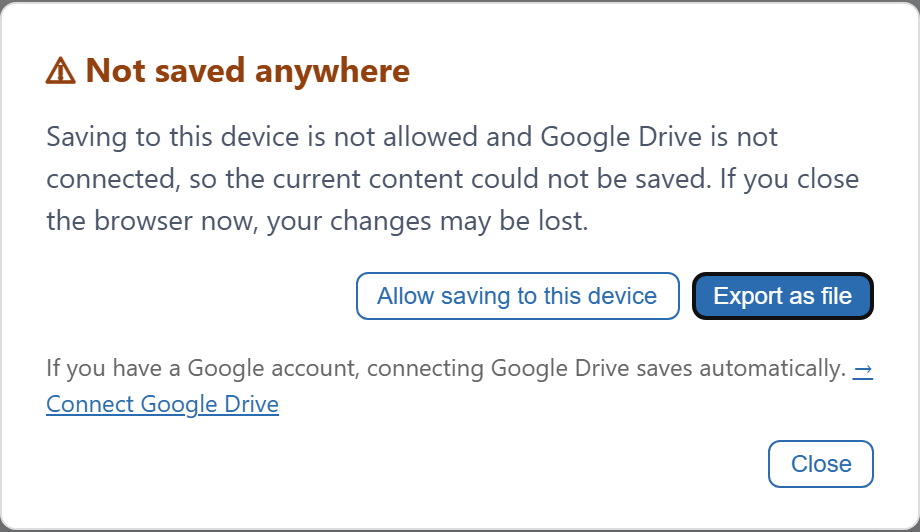
Export as file keeps a copy in any browser. Allow saving to this device lets you choose a folder again.
Opening
on the toolbar, File → Open, or Ctrl+O (⌘+O on a Mac) shows a list of your reading logs. It is one list that matches the reading logs on this device and on Google Drive by name.
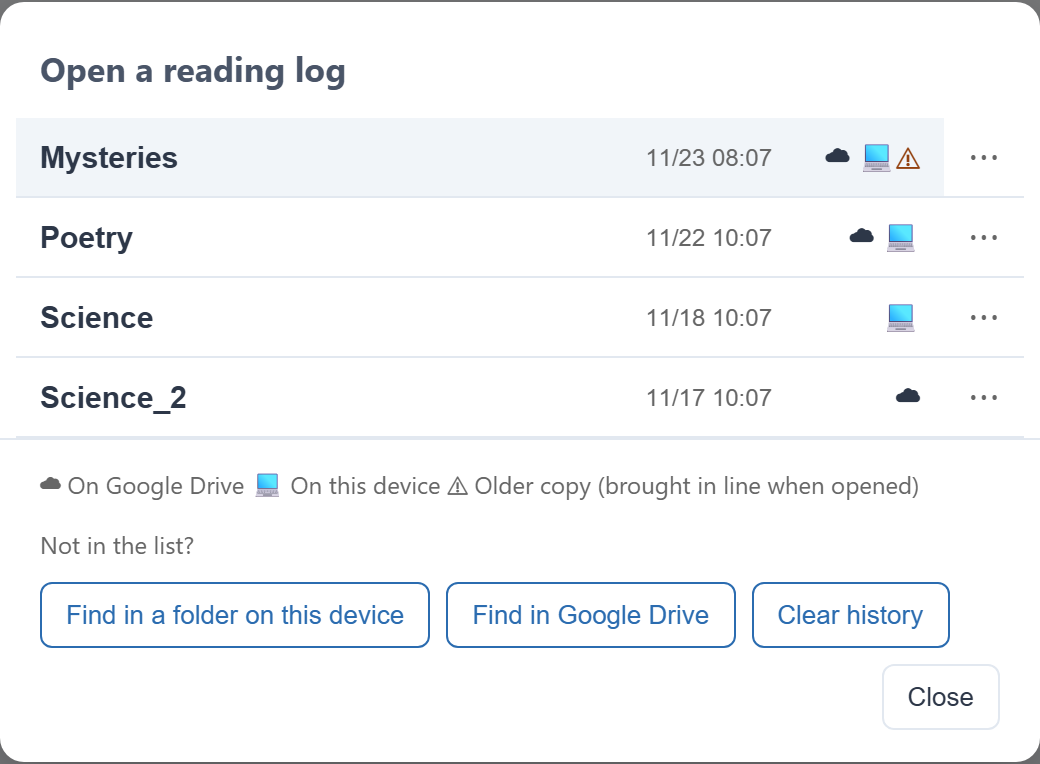
- ☁ … on Google Drive
- 💻 … on this device
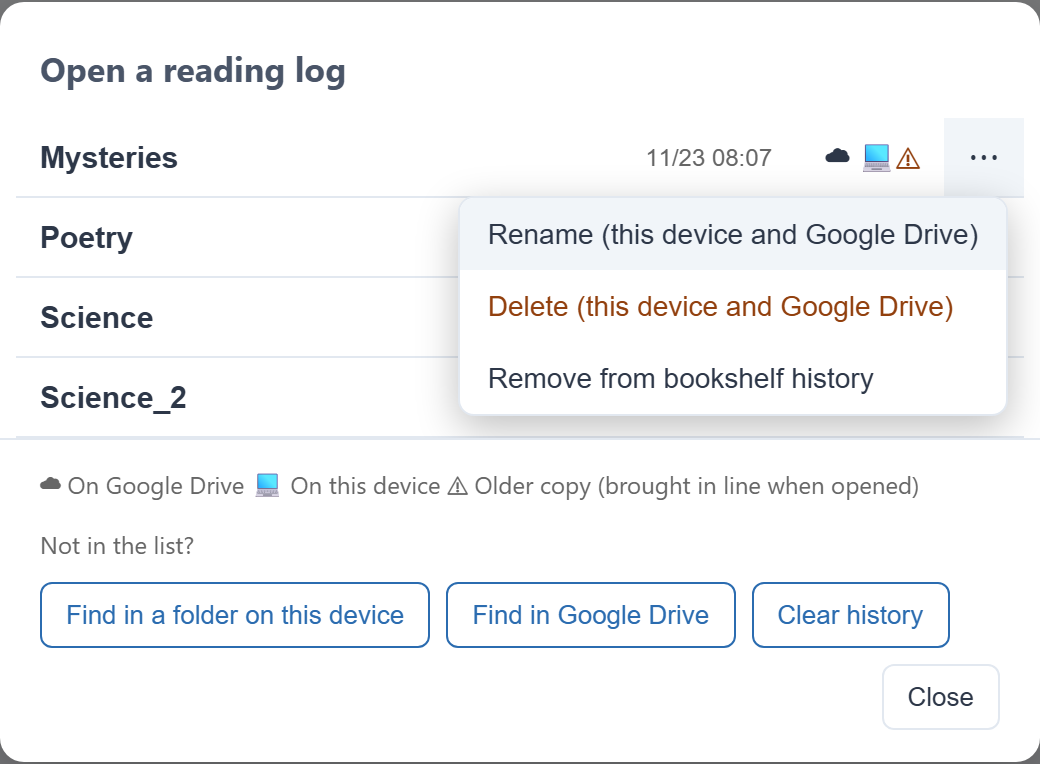
- ⚠ … that copy is older (opening brings them in line)
When a reading log is in both places, the newer copy opens. The older copy is updated in the background.
If a reading log is not in the list, use Find in a folder on this device or Find in Google Drive at the bottom.
The Bookshelf (the reading logs you have opened or saved) appears in this list. To remove an entry from the history, use ⋯ → Remove from bookshelf history on its row; to remove all of them, use Clear history. The files themselves are kept. For the Bookshelf List in the View menu, which shows the books of every file on your Bookshelf together, see Bookshelf.
Status marks
The state of both places is always shown under the file name.
| Mark | Meaning |
|---|---|
| ☁ Google Drive ✓ / 💻 This device ✓ | Saved |
| ⚠ Not updated | Not saved yet (the connection dropped, writing failed, and so on). It is retried automatically |
| Google Drive Not connected | Google Drive is not in use |
| This device Not saving / Cannot save | Saving to this device is not allowed / this browser cannot write to a folder |
| (no mark) | Just opened and not checked yet (it is checked when you save) |
Click a mark such as ⚠ to see the reason and what you can do.
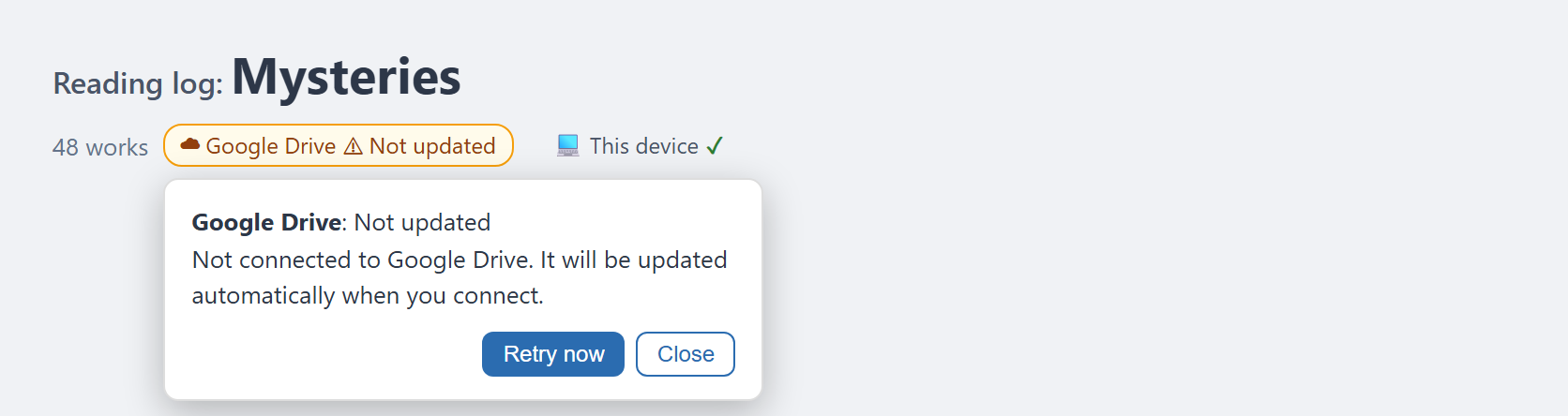
- Retry now … saves again right away
- Connect Google Drive … when Google Drive is not connected
- Allow saving to this device, Choose the folder again … when it cannot be saved to this device
- Export as file … when this browser cannot write to a folder
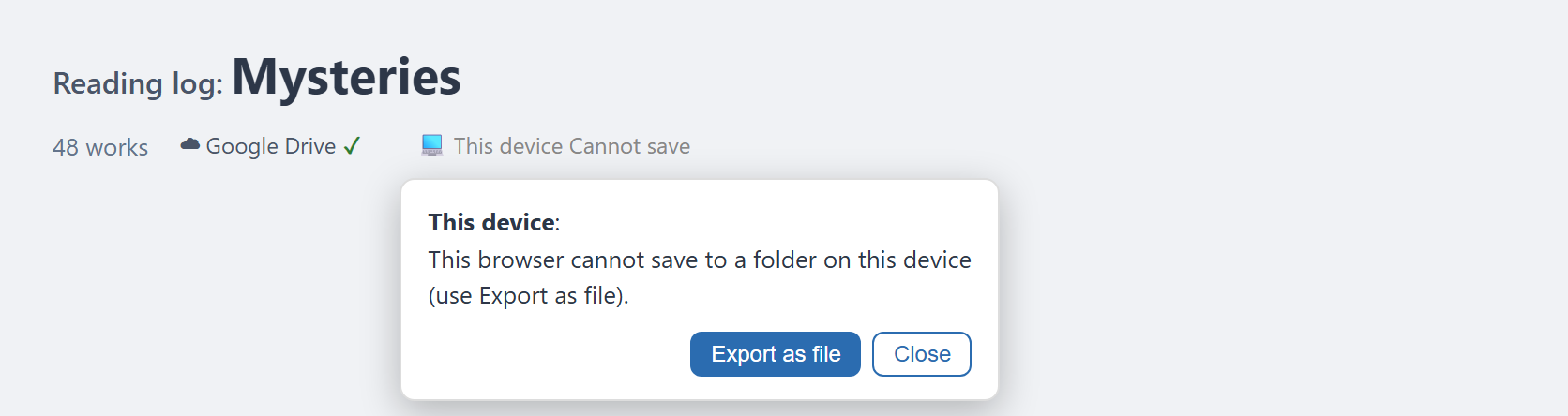
A Not updated copy is retried automatically when the connection comes back, after a while, and when you open that reading log. It is not retried while you have unsaved changes (so that content you have not saved is not copied); it is updated when you save.
When the two copies differ
The copies in the two places can differ, for example when the connection dropped or when you edited on another device. Each time you save, Reading Forest writes into the reading log which version it was made from, and uses that to tell which copy is newer.
- If one copy is simply older … it is brought in line with the newer one without asking (when you open or save).
- If both copies were edited separately … you are asked which to keep.
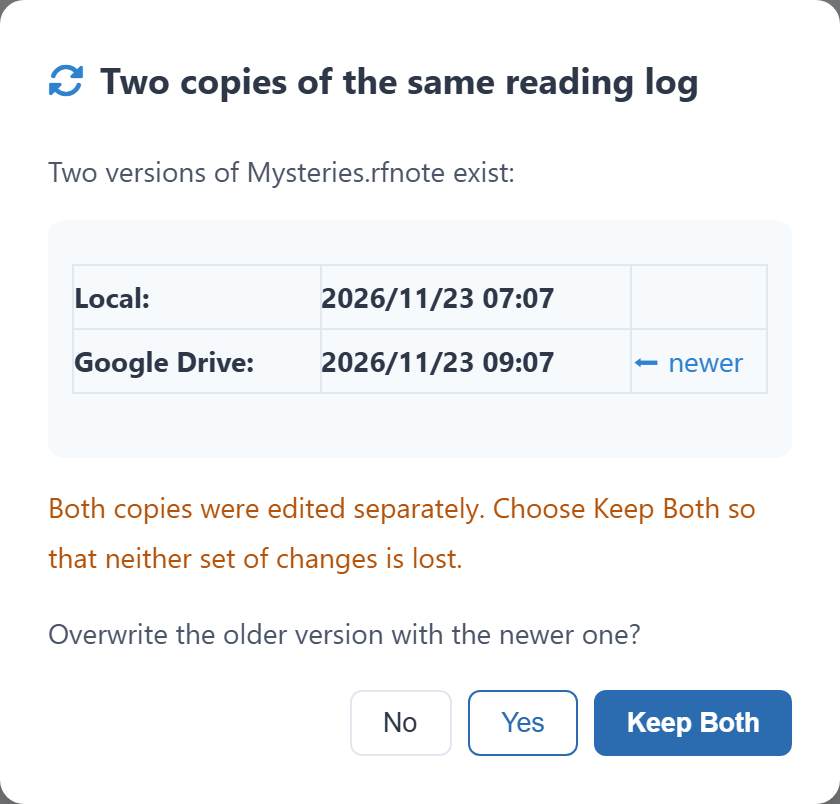
If you are not sure, choose Keep Both (the default). The other copy is kept under another name, so neither set of changes is lost.
Renaming and deleting
Use ⋯ on a row of the Open list. You can also rename the reading log that is open by clicking its file name.
Renaming
- The name is changed on both this device and Google Drive.
- If Google Drive is not connected, the folder on this device cannot be written, or a file with the same name exists, nothing is changed and you are told why. This keeps one reading log from turning into two with different names.
- Links to it inside other reading logs can be updated to the new name too (you choose this on the rename screen).
Deleting
- The reading log is removed from both this device and Google Drive.
- A copy is kept first: the copy on this device goes to the .trash folder in the same folder, and the Google Drive copy goes to the Google Drive trash (for 30 days). If the copy on this device cannot be kept, nothing is deleted.
- If one place cannot be reached (for example, Google Drive is not connected), the deletion is remembered as pending and done when it can be reached. You can also do it right away with Delete N pending now at the bottom of the list.
- The reading log that is open cannot be deleted. Open another one or start a new one first.
To delete files directly in the browser or on your computer, see Deleting Unwanted Files.
Settings
Under View → Settings (Ctrl+,) → File tab you can turn each place on or off. You also connect Google Drive there.
- ☁ Also save to Google Drive … when Google Drive is connected, reading logs saved on this device are also saved to Google Drive. Turn it off to save on this device only.
- 💻 Also save to this device … reading logs saved to Google Drive are also saved to a folder on this device. Turn it off to save to Google Drive only (it has no effect when the option above is off).
Both are on at first.
Frequently asked questions
Yes. Saving to a folder on this device is enough. If you connect Google Drive, your reading logs are saved there too.
Phone browsers forget the permission to write to a folder when the tab is closed. So Reading Forest asks once, at the first save after you open it.
The browser sometimes stops answering for a folder that was registered long ago. Open → Find in a folder on this device → + Add new folder, and choose the same folder again. It then works with a fresh record.
If they were saved to Google Drive, the newer copy opens next time and the older copy on this device is brought in line. You are asked which to keep only when both copies were edited separately.
Yes. A copy is kept in the .trash folder in the same folder on this device, and in the Google Drive trash (for 30 days).