About Math Formula Input
Reading Forest allows you to enter math formulas using LaTeX notation in your notes. This is useful for accurately recording formulas and theorems when reading math textbooks or academic papers. Formulas are beautifully rendered by MathJax.
Basic Syntax
Enter formulas as text directly in the note field. Wrap them with dollar signs $ to be recognized as math.
Inline Math (within text)
To embed a formula within a sentence, wrap it with $.
The Pythagorean theorem states $a^2 + b^2 = c^2$.This displays as: "The Pythagorean theorem states \(a^2 + b^2 = c^2\)." with the formula embedded in the text.
Display Math (on its own line)
To display a formula on a separate line in a larger format, wrap it with $$.
$$E = mc^2$$Result:
Use inline math for short expressions (variable names, simple equations) and display math for important formulas or longer expressions.
Common Notation
| Syntax | Result | Description |
|---|---|---|
$x^2$ |
\(x^2\) | Superscript (power) |
$x_{n}$ |
\(x_{n}\) | Subscript (index) |
$\frac{a}{b}$ |
\(\frac{a}{b}\) | Fraction |
$\sqrt{x}$ |
\(\sqrt{x}\) | Square root |
$\sum_{i=1}^{n} i$ |
\(\displaystyle\sum_{i=1}^{n} i\) | Summation |
$\int_a^b f(x)\,dx$ |
\(\displaystyle\int_a^b f(x)\,dx\) | Integral |
$\alpha, \beta, \gamma$ |
\(\alpha, \beta, \gamma\) | Greek letters |
$\leq, \geq, \neq$ |
\(\leq, \geq, \neq\) | Comparison operators |
Multi-line Formulas
Use LaTeX math environments to display multiple equations aligned together.
align* environment (align at equals sign)
$$\begin{align*}
(a + b)^2 &= a^2 + 2ab + b^2 \\
(a - b)^2 &= a^2 - 2ab + b^2
\end{align*}$$
Result:
Use & to mark alignment points and \\ for line breaks.
cases environment (piecewise)
$$|x| = \begin{cases}
x & (x \geq 0) \\
-x & (x < 0)
\end{cases}$$
Result:
pmatrix environment (matrix)
$$A = \begin{pmatrix}
1 & 2 \\
3 & 4
\end{pmatrix}$$
Result:
align*, aligned, gather*, equation*, eqnarray*, cases, pmatrix, bmatrix, and vmatrix are available.
Chemical Formulas
You can also express chemical formulas using LaTeX notation.
| Syntax | Result |
|---|---|
$H_2O$ |
\(H_2O\) |
$CO_2$ |
\(CO_2\) |
$Na^+$ |
\(Na^+\) |
$SO_4^{2-}$ |
\(SO_4^{2-}\) |
$2H_2 + O_2 \rightarrow 2H_2O$ |
\(2H_2 + O_2 \rightarrow 2H_2O\) |
How to Enter Formulas
-
Start editing a note
Open a book and type in the note field of a record -
Enter the formula in LaTeX notation
Wrap your formula with$...$or$$...$$ -
Save and check the display
After saving, the formula is automatically rendered
Math formula display is available on all plans, including the free plan.
Bringing Formulas In from Our Articles
Our published mathematics and engineering articles (Allisone Math Notes) show a book icon beside each heading. Pressing it copies that section to the clipboard together with its formulas, as LaTeX. Paste it into a Reading Forest memo and the formulas render as they are — no retyping.
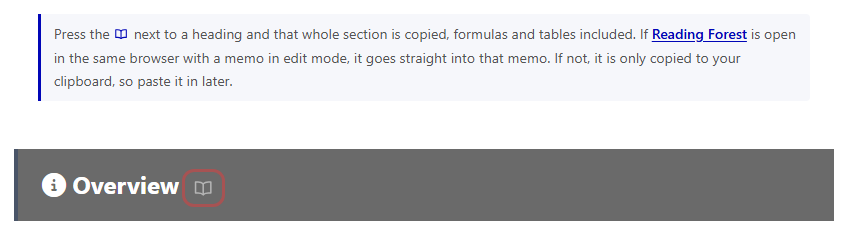
Typeset formulas are images, so a plain selection drops every one of them. The book icon extracts the LaTeX from before typesetting.
With Reading Forest open, it is inserted for you
If you have Reading Forest open in the same browser (another tab or another window, either is fine) and a record's memo is in edit mode, pressing the book icon inserts the text at your cursor — you do not need to paste.
- Your existing memo is not overwritten. The text is inserted at the cursor position
- If you did not want it, press Ctrl + Z to undo (Ctrl + Shift + Z to redo)
- If no memo is in edit mode, nothing happens. The text is still on the clipboard, so you can paste it later
- It does not reach Reading Forest if you have it open in a different browser, a private window, or another device. The text is still copied, so paste it as usual
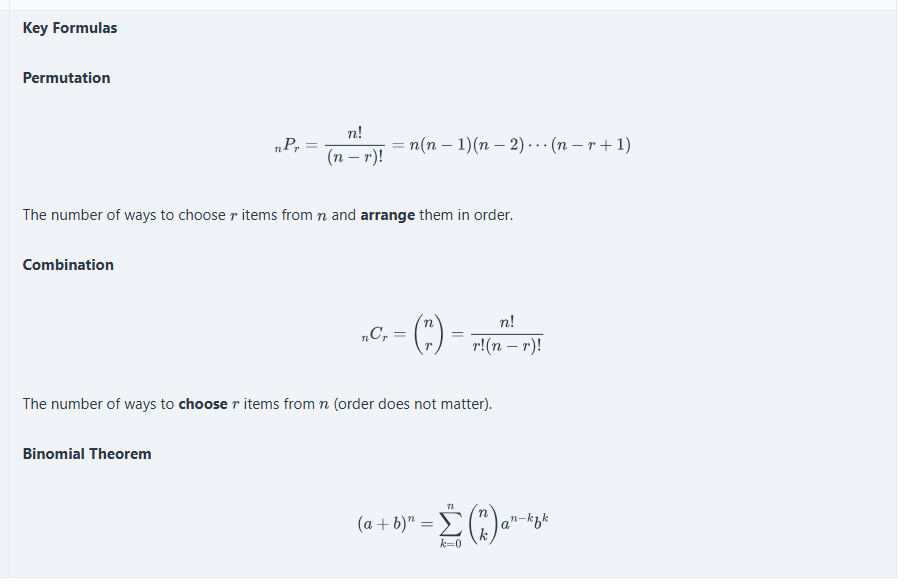
Summary tables arrive as tables. Animated figures and canvas drawings do not come across; the button tells you on the spot what will be missing.
FAQ
Q: The formula isn't rendered and I see $...$ as plain text
Math formula display works on every plan, including the free plan, so this is not a plan issue. Check these three points:
- Are the
$delimiters paired? A lone$is shown as plain text. - Does one formula run across a line break? Keep
$...$on a single line ($$...$$may span several lines). - Are the braces closed? For example,
$\frac{a}{b$is not rendered.
Spaces around the $ do not matter. the area is$a^2$here renders as well.
Q: A dollar amount turns into a formula
If a line contains two or more $, everything between them is typeset as math (for example, the price is $100 and $200). To show a literal dollar sign, write \$100.
Q: Entering complex formulas is difficult
Until you're familiar with LaTeX notation, refer to the "Math Formula Examples" page linked below. Examples are organized by learning level.
Q: Is there a list of supported commands?
All LaTeX commands supported by MathJax are available. See the related pages below for details.