
Add book covers to your reading notes.
Every glance brings back the reading experience.
Pasting book covers into your reading notes makes it easier to recognize books at a glance. It's more visually engaging than a text-only list and can boost your motivation to read more.
This guide walks you through finding book cover images, printing them, and pasting them into your reading journal. We cover both at-home printing and print shop options.
Step 1: Find Book Cover Images
First, save the cover images of the books you want to print.
From online bookstores
The easiest way is to search for the book on Amazon, Barnes & Noble, or another online bookstore and save the cover image from the product page.
- Search for the book title on an online bookstore
- Open the product page and find the cover image
- Smartphone: Long-press the image → "Save image"
- PC: Right-click the image → "Save image as"
From publisher websites
Publisher websites often have higher-resolution cover images than online bookstores.
A note on copyright
Printing cover images for personal use in your own reading notes is generally considered fair use. However, posting cover images on social media or blogs without permission may require publisher approval.
Step 2: Arrange Multiple Covers on One Page
Printing one cover per page wastes paper and ink. Arranging multiple covers on a single page is more efficient.
Using a collage app (smartphone)
Apps like Canva or collage maker apps let you arrange images in a grid layout.
- Open the collage app and select a grid layout (4 or 9 panels)
- Place your saved cover images into each panel
- Save the completed collage image
Using PowerPoint or Google Slides (PC)
On a computer, you have more control over size and placement.
- Create a Letter/A4-sized slide
- Insert cover images and resize them (about 3cm tall × 2cm wide works well for journals)
- Arrange multiple covers on the slide, then save as image or print directly
Step 3-A: Print at a Print Shop
If you don't have a printer at home, you can use a print shop, self-service kiosk, or a pharmacy/convenience store with a photo printing station. Many countries have similar services — here are some common options:
Common print services by region
- Japan: Convenience stores (Seven-Eleven, Lawson, FamilyMart) offer multifunction copiers. Use apps like "Kantan netprint" (Seven-Eleven) or "Network Print" (Lawson/FamilyMart) to upload images from your phone and print at the store. Color A4 prints cost about ¥50-60 (~$0.35-0.40).
- US/Europe: FedEx Office, Staples, or local print shops offer self-service color printing. Drugstores like CVS and Walgreens also have photo printing kiosks.
- General: Many libraries and office supply stores offer pay-per-page printing services.
General steps
- Save your collage image to a USB drive, or upload it to a cloud print service / store app
- At the print shop or kiosk, select your file and choose paper size and color settings
- Print and collect your sheet
Cost-saving tip
Fitting 9-16 covers on a single page brings the per-book cost down significantly. Standard paper with color printing works well enough for most reading journals.
Step 3-B: Print at Home
With a home printer, you can print whenever you like.
- Print the collage image or PowerPoint file
- Photo paper gives the best results, but standard paper works fine too
- Set print quality to "High" or "Best" for sharper details
Step 4: Paste into Your Reading Notes
Cut out the printed covers and paste them into your reading journal.
What you'll need
- Scissors or a craft knife with cutting mat
- Tape runner or glue stick (tape runners prevent paper from wrinkling)
- Ruler (for straight cuts)
Tips for a clean finish
- Leave a 2-3mm margin around the cover image when cutting for a neater look
- Tape runners work better than liquid glue — they won't wrinkle the paper
- Write the book title and author next to each cover for easy reference
A Faster Way to Create Reading Notes with Covers
There's something special about a handmade reading journal — the feel of turning pages, writing with your favorite pen, and seeing your collection grow. But searching for cover images, creating collages, printing, cutting, and pasting for every book you read can become time-consuming, especially if you're a frequent reader.
If the manual process starts to feel like a chore, a digital tool can be a helpful complement. For example, the reading management web app "Reading Forest" (which has a free plan) offers the following:
What Reading Forest offers
- Automatic cover images: Just register a book and the cover appears automatically
- One-click printing: Print cover images, reading records, and progress graphs all at once
- PDF export: Save as PDF to review on your phone anytime
- Customizable output: Fine-tune what gets printed using display options
- Gallery view: See your covers lined up like a bookshelf (part of the paid plans)
- Free plan available: Sign up and start right away in any browser (no payment details required)
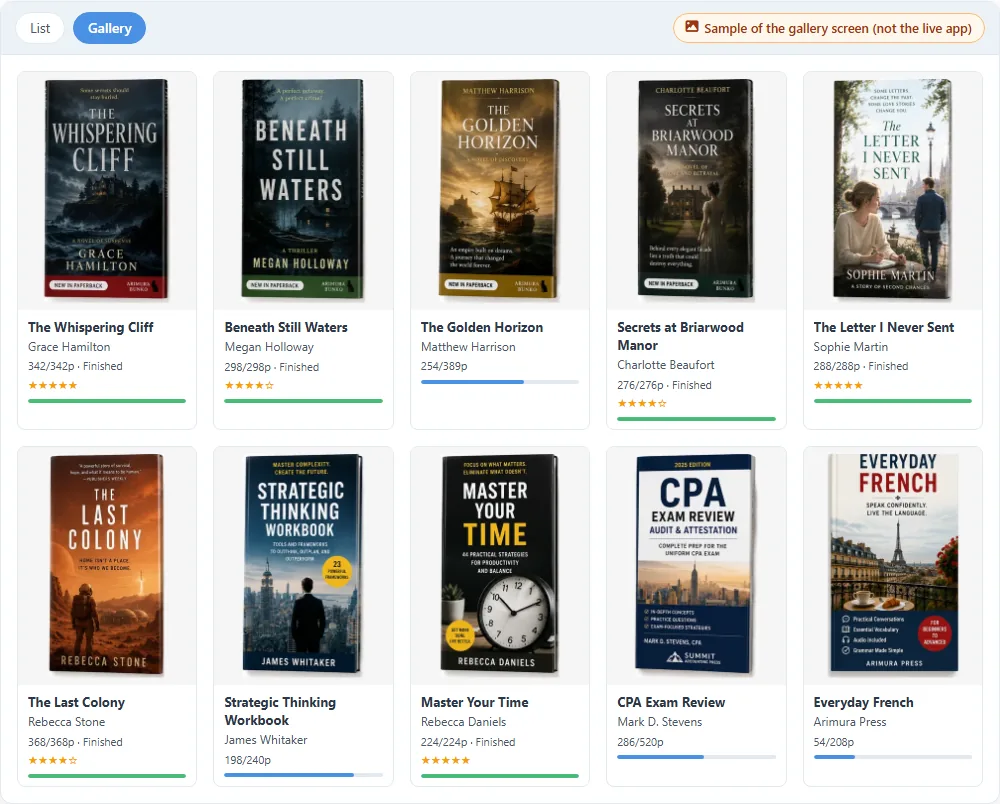
The list and gallery views are part of the paid plans (try them with the 30-day free trial).
This is a sample of the gallery screen; all titles, authors, cover art and publisher names are fictional.
Handmade warmth and digital convenience each have their own appeal. Try both and find what works best for your reading style. You can even combine them — paste covers into a paper journal while keeping a digital backup.