Overview
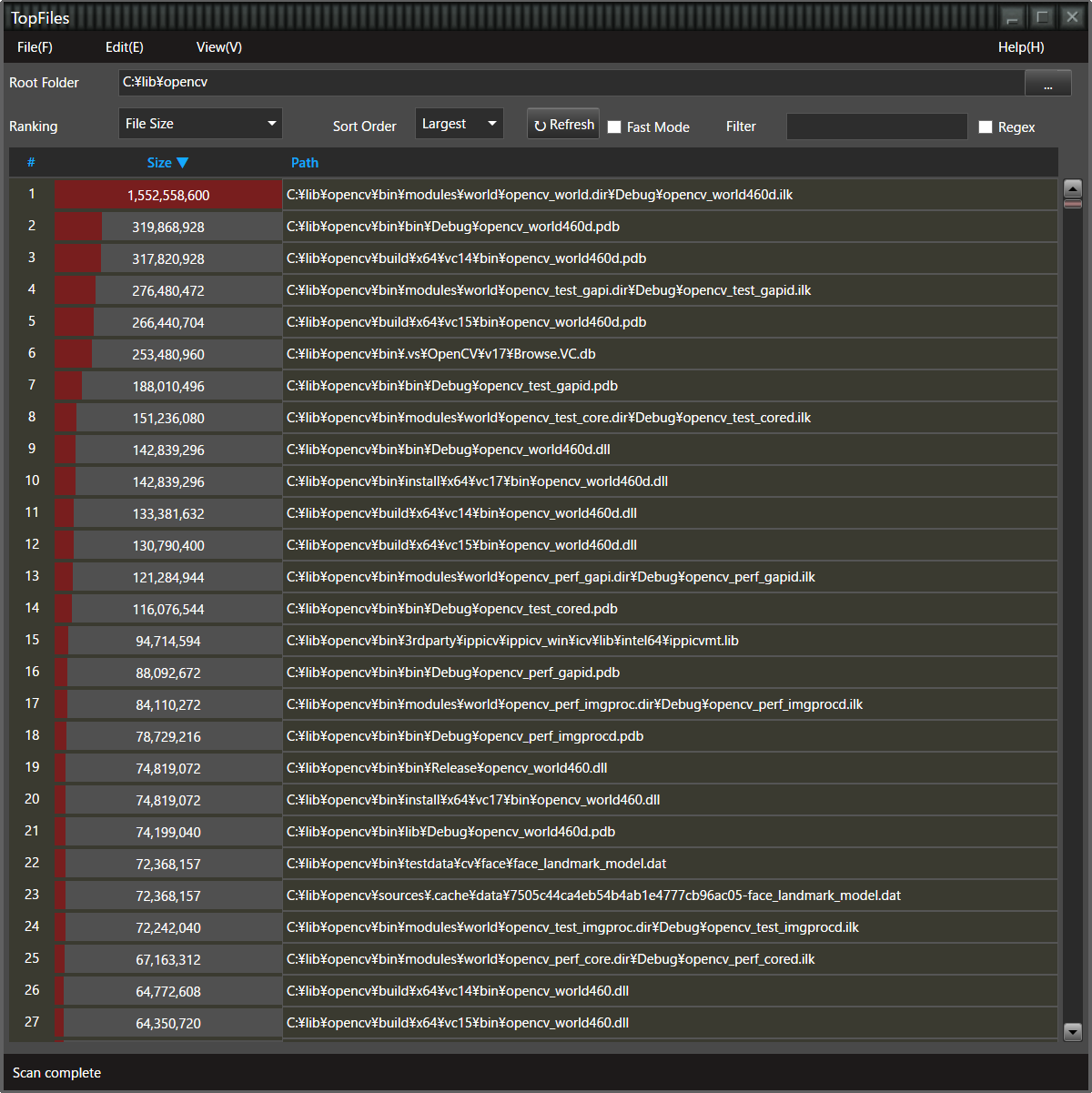
TopFiles scans files and folders under a specified directory and displays a top-1,000 ranking based on various file/folder attributes.
It is useful for identifying large files when disk space is running low, finding old files, detecting overly deep folder hierarchies, and more. TopFiles is freeware (free of charge).
System Requirements
- Windows 10 / 11
- .NET Framework 4.8
Installation
- Double-click the installer (
TopFiles-1.3.0-setup.exe) to launch it - A User Account Control (UAC) dialog will appear. It may say "Publisher: Unknown" because the installer is not code-signed. This does not affect functionality. Click "Yes" to continue
- If "Windows protected your PC" appears, click "More info" and then "Run anyway"
- Confirm the installation directory and click "Next" (default:
C:\Program Files\Allisone\TopFiles) - Optionally check "Create a desktop shortcut"
- Click "Install" to begin installation
- On the completion screen, leave "Launch TopFiles" checked and click "Finish" to start immediately
Usage
- Launch the application
- Specify a Root Folder
- Select the Ranking Criteria and Sort Order
- Optionally set a Filter
- The scan runs in the background and results update in real time
Root Folder
Enter the path of the folder you want to scan in the text box next to "Root Folder" at the top of the window. All files and folders under that directory will be scanned and ranked.
Click the ... button on the right to open a folder selection dialog.
You can also type a path directly in the address bar.
Ranking Criteria
Choose the attribute to rank by. Nine criteria are available:
| Criteria | Description | Sort Order Labels |
|---|---|---|
| File Size | File size in bytes | Smallest / Largest |
| Creation Date | File creation date/time | Oldest / Newest |
| Modified Date | Last modified date/time | Oldest / Newest |
| Access Date | Last access date/time | Oldest / Newest |
| Filename Length | Number of characters in filename | Shortest / Longest |
| Path Length | Number of characters in full path | Shortest / Longest |
| Folder Size | Total size of files directly in folder | Smallest / Largest |
| Folder Depth | Number of levels from root folder | Shallowest / Deepest |
| Files per Folder | Number of files directly in folder | Fewest / Most |
Sort Order
Toggles the ranking order. The label changes automatically based on the selected criteria (e.g., "Largest" / "Smallest" for File Size).
You can also click the value column header (e.g., "Size ▼") to toggle the sort order. ▲ indicates ascending order, ▼ indicates descending order.
Refresh Button
Click the ↻ Refresh button to re-scan.
Use this when files in the root folder have changed and you want up-to-date results.
Fast Mode
Check the "Fast Mode" checkbox to switch to fast scanning by directly reading the NTFS volume's MFT (Master File Table). Normal scanning traverses folders one by one, which can be slow. Fast mode reads all file information at once, completing a full-drive ranking in seconds.
Administrator Privileges
Reading the MFT requires administrator privileges. When you enable Fast Mode, a Windows User Account Control (UAC) dialog will appear. Click "Yes" to restart TopFiles with elevated privileges.
- Window position and size are preserved across the restart
- Elevation is requested only once at startup, not each time you change the root folder
- If you click "No" on the UAC dialog, Fast Mode remains off and normal scanning continues
Filter
Enter text in the "Filter" field to narrow results to files whose path contains that string. The match is case-insensitive.
- Filter by extension:
.jpgor.png - Filter by folder name:
src\utilsorbackup - Leave empty to include all files
Regex Filter
Check the "Regex" checkbox to treat the filter input as a regular expression. This allows more flexible filtering, such as OR conditions. The match is case-insensitive.
| Regex | Meaning |
|---|---|
\.txt$ | Files ending with .txt |
\.jpe?g$|\.png$ | JPEG or PNG files (OR) |
^C:\\Users | Paths starting with C:\Users |
\\temp\\ | Paths containing \temp\ |
2024.*\.xlsx$ | Excel files with 2024 in the path |
(?=.*\\backup\\)(?=.*\.log$) | .log files in a backup folder (AND) |
Ranking Results
Results are displayed as rank, value, and file/folder path. The bar graph behind each value provides a visual indicator of relative magnitude.
- Up to 1,000 entries are displayed
- The list header column name changes automatically based on the ranking criteria
Selection & Actions
Click a row in the ranking list to select it. Multiple files can be selected simultaneously.
| Action | Behavior |
|---|---|
| Click | Select the clicked row (deselect others) |
| Ctrl+Click | Toggle selection of the clicked row (keep other selections) |
| Shift+Click | Select range from last clicked row to current row |
| Ctrl+A | Select all rows |
Deleting Files
You can delete files selected in the ranking list. Deleted files are moved to the Recycle Bin, so they can be recovered if deleted by mistake.
- Click [Edit] → [Delete] in the menu
- Or press the Del key
When multiple files are selected, they are all deleted at once. The ranking is automatically updated after deletion.
Opening Files
Double-click a row in the ranking list to open the file with its associated application. For example, image files open in a viewer, text files in an editor.
Copying Paths
The path column in the ranking results is a text box. Select the path and press Ctrl+C to copy it, then paste it into Explorer or another application.
Scrolling
- Use the scrollbar on the right to scroll the list vertically
- The mouse wheel also scrolls the list
- A horizontal scrollbar appears when the window is narrow
Keyboard Shortcuts
| Key | Action |
|---|---|
| Del | Delete selected files to Recycle Bin |
| Ctrl+A | Select all rows in the list |
| Ctrl+C | Copy path to clipboard |
Scan Status
During scanning, the status bar at the bottom displays the path of the folder currently being scanned. In Fast Mode, it shows the number of MFT records read and the number of hits. When the scan is complete, "Scan complete" is displayed.
Even if the displayed folder name stops changing, scanning continues until "Scan complete" appears.
Language Switching
Switch the display language between Japanese and English via [View] → [Language] in the menu. The selected language is saved automatically and restored on next launch.
- All UI text is switched: menus, labels, ranking criteria, sort order, tooltips, and messages
- Language changes take effect immediately, even during a scan
Resize / Maximize / Minimize
Drag the window edges to resize freely. Click the maximize button in the upper right to fill the screen.
If a scan is taking time, click the minimize button to continue scanning while minimized.
Exiting
Click the × button in the upper right,
or select [File] → [Exit] from the menu.
Use Cases
- Check disk usage — Rank by "File Size" (largest first) to identify large files, then delete unnecessary ones
- Clean up old files — Rank by "Modified Date" (oldest first) to find files that haven't been touched in a long time
- Find specific file types — Enter
.mp4or.login the filter to rank only specific extensions - Analyze specific folders — Enter
backuportempin the filter to examine files in particular folders - Detect path length issues — Rank by "Path Length" (longest first) to find files approaching Windows' 260-character path limit
- Analyze folder structure — Use "Folder Depth" to detect excessively deep nesting
- Find cluttered folders — Rank by "Files per Folder" (most first) to identify folders that need organization
- Fast full-drive scan — Enable Fast Mode and set the root folder to a drive root (e.g.,
C:\) to get a full-drive ranking in seconds
Version History
| Version | Date | Changes |
|---|---|---|
| 1.3 | 2026 | Japanese/English language switching, caption button hover effect |
| 1.2 | 2026 | Dark theme, fast mode (NTFS MFT direct reading), filter (substring / regex), file deletion (Recycle Bin), multi-select, double-click to open, 1,000-item ranking, header click sort toggle, mouse wheel scroll, auto-save settings, help page |
| 1.1 | 2011 | Improved [...] button to default to current root folder, fixed bug when specifying an empty folder |
| 1.0 | 2011/07/27 | Initial release |
Disclaimer
This software is freeware. No support is provided. Allisone Inc. assumes no liability for any damages resulting from the use of this software.
Uninstallation
You can uninstall TopFiles using either of the following methods:
Method 1: From Windows Settings
- Open Windows [Settings] → [Apps] → [Installed apps]
- Find "TopFiles" in the list and select "Uninstall" from the
...menu on the right - Follow the confirmation prompts to uninstall
Method 2: From the Start Menu
- Click [All apps] → [Allisone] → [Uninstall TopFiles] in the Start menu
- Follow the confirmation prompts to uninstall
Links
TopFiles ver 1.3